Linkrium product update
New in Linkrium: Contact Tags and Saved Messages
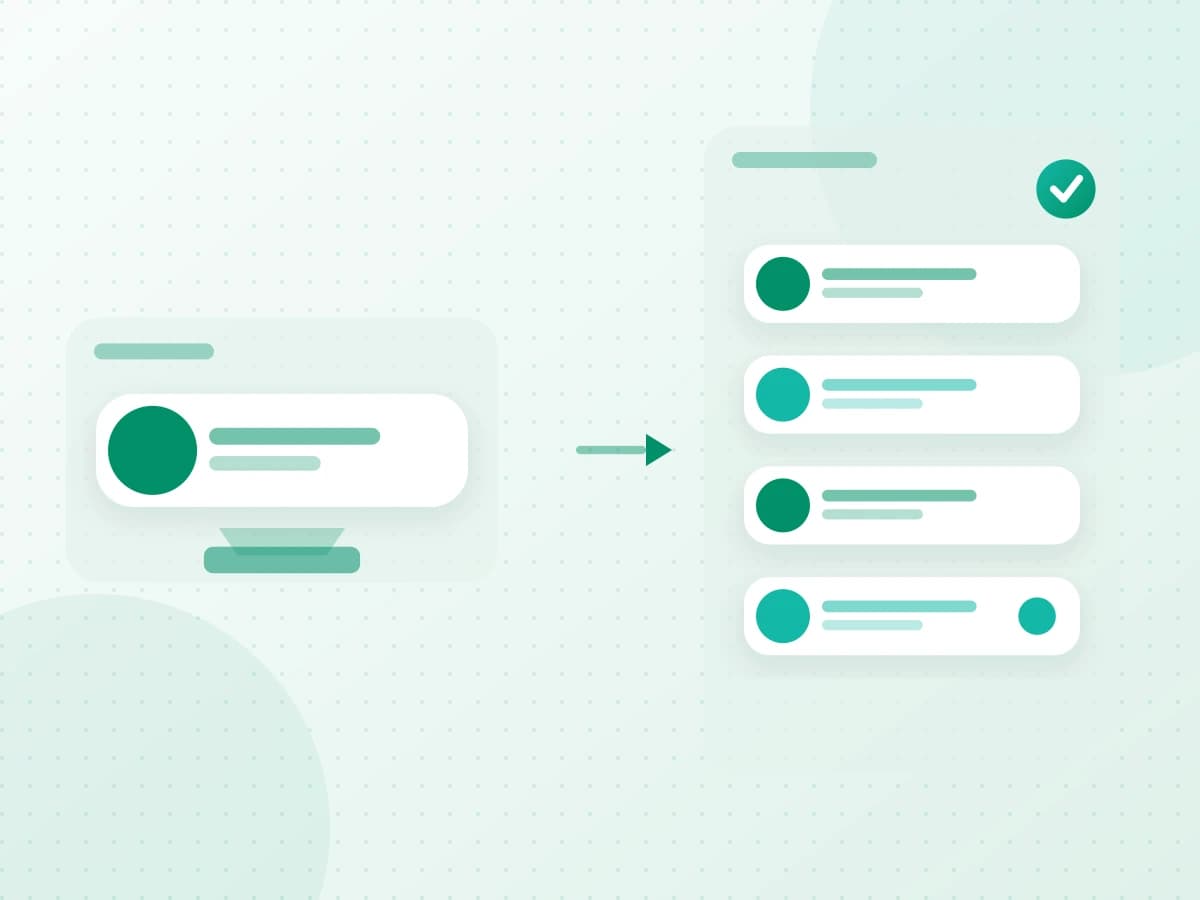
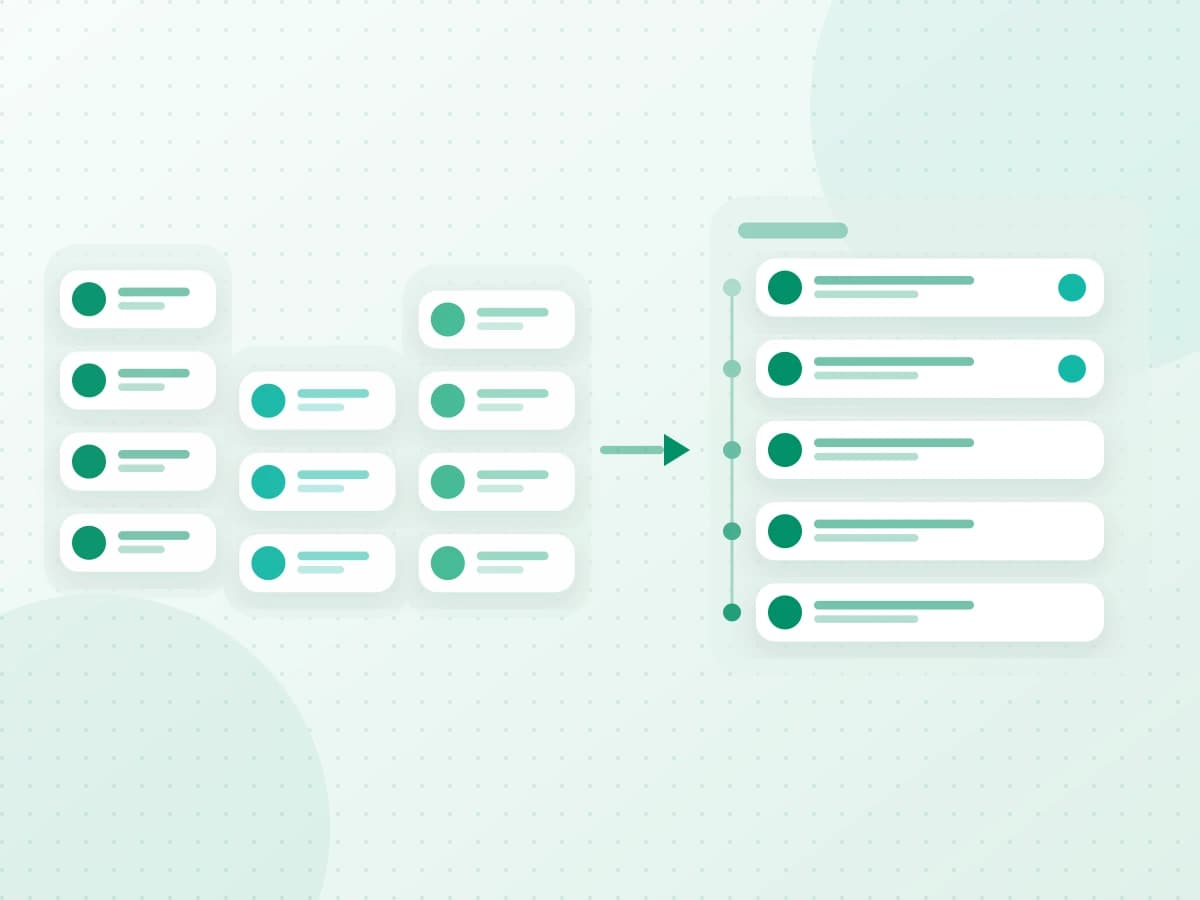
Contact tags create focused Contacts and Inbox views, while Saved messages gives each user a searchable place for details worth returning to.
- Publication date
- Published
- Reading time
- 5 min read
- Author
- Linkrium Editorial Team
Checked against first-party documentation on for Web. Interfaces change and rollouts are staged, so confirm details in your own app version.
On this page8 sections
Two organization tools now cover different parts of the same workflow. Contact tags answer “which people should I review together?” Saved messages answers “which exact details do I need to find again?” Both preserve a route back to the original contact and conversation.
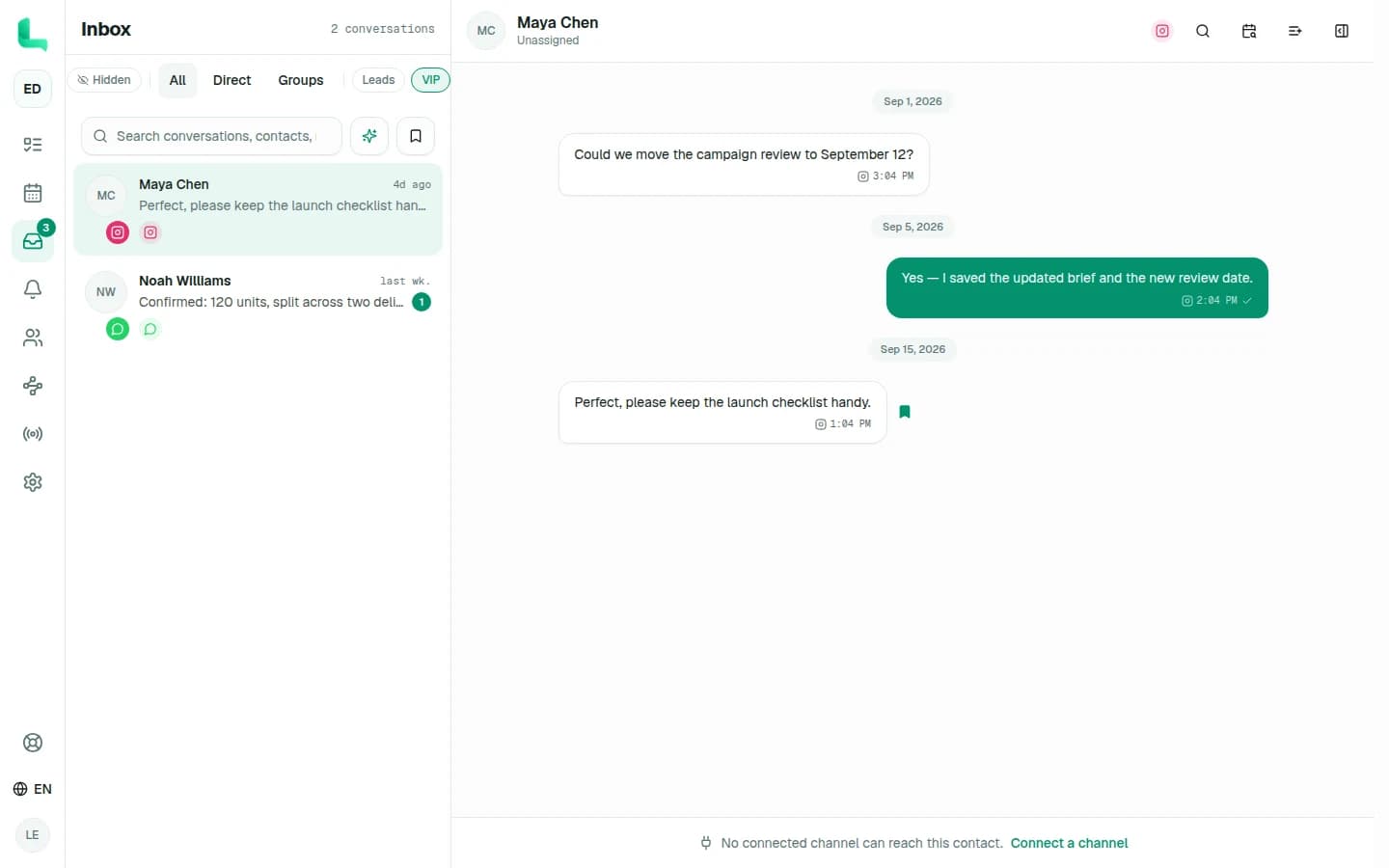
The product calls the first feature Tags, not Lists. A tag such as VIP, Leads, or Property becomes a filter chip that produces a focused list in Contacts and Inbox.
Quick answer#
Add tags while creating or editing a contact, then select a tag chip to filter the Contacts list or unified Inbox to people carrying that label. Save a particular message from its action menu, open Saved messages beside inbox search, and search or select an item to return to the original conversation and message.
Tags may overlap, so one contact can appear in several filtered lists without being duplicated. Saved messages is personal to the current user and workspace; removing a bookmark does not remove the source message.
Organize contacts with tags and filtered lists#
Create or edit a contact and add the short labels that reflect stable working contexts: VIP, Leads, Property, Retail, or a team-specific category. Linkrium normalizes repeated whitespace, prevents case-insensitive duplicates on the same contact, and currently accepts up to 20 tags per contact.
The distinct tags in use appear as filter chips. Select one in Contacts to narrow the people list, or select it in Inbox to show conversations belonging to contacts with that tag. The filtered total comes from the server, so it describes the whole matching set rather than only the rows currently loaded on screen.
Tags are views, not duplicate address books#
A contact can carry several tags and continue to have one Linkrium identity. Selecting VIP does not copy the person or their messages into a separate database record. It asks for the live contacts or conversations that currently carry that label.
Use a small vocabulary that people will understand later. Tags such as Urgent, Waiting, and Done tend to become stale workflow states; tasks, reminders, archive, and unread controls are better suited to work that changes over time.
Save an important message#
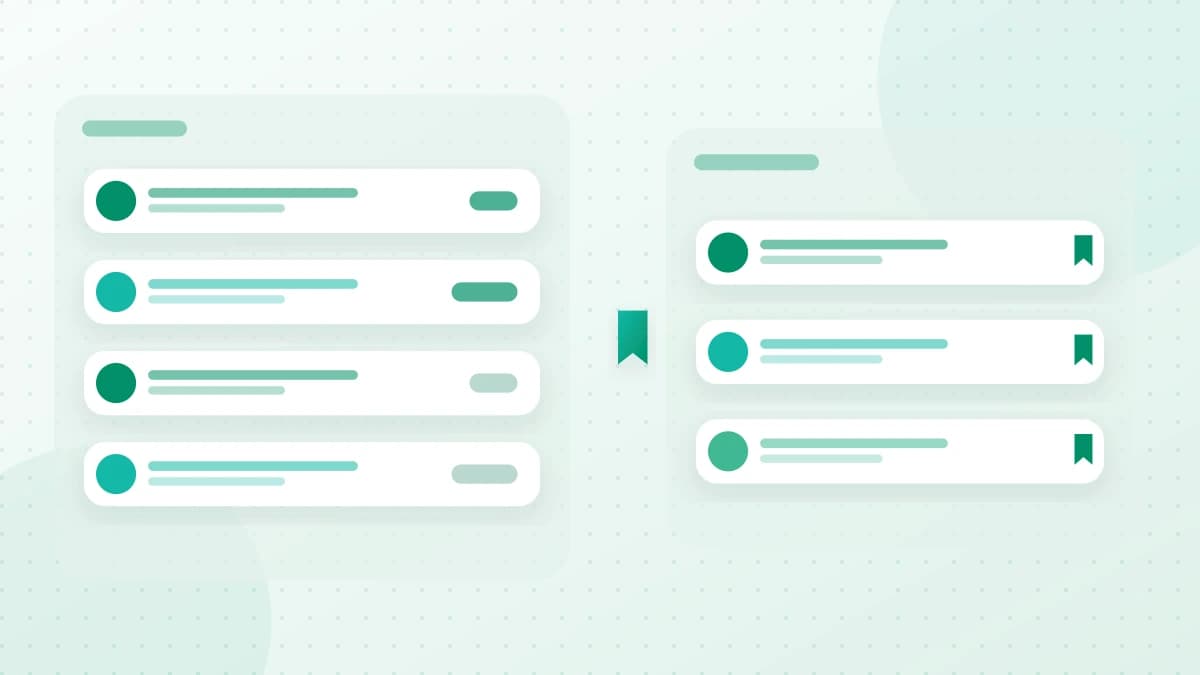
Open the message's action menu and choose Save message. The bookmark icon then shows that the message is in your saved collection. Saving the same message again is idempotent rather than creating duplicates.
Use Saved messages for a delivery address, final quantity, agreed date, objection, decision, or other detail you expect to revisit. Keep the original conversation as the source of truth; the bookmark is a route back to that context, not a copied message archive.
Browse and search saved messages across conversations#
Open Saved messages from the bookmark button beside inbox search. The panel lists the user's newest bookmarks from the current workspace, including the contact, source channel, excerpt, and message date.
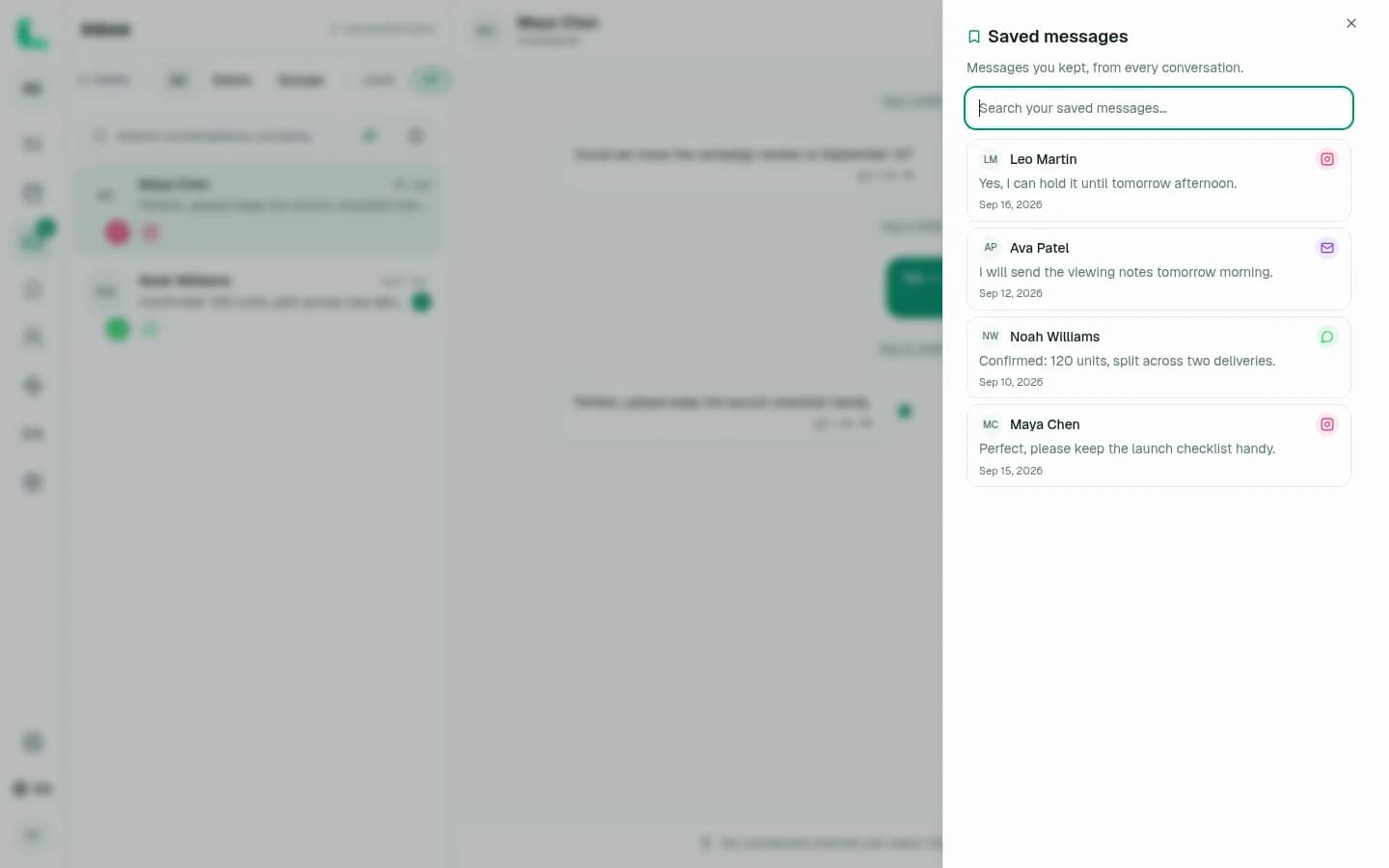
Enter at least two characters to search the saved set. Linkrium searches the bookmark's available message text and can also match a generated transcript for a saved voice message when that transcript exists. The query is limited to messages you chose to save, not every message in the workspace.
Selecting a result opens its conversation and focuses the original message. That jump keeps the surrounding replies, timestamp, sender, and channel available before you act on the saved detail.
Remove a bookmark without deleting the message#
Choose Remove from saved in the panel or Remove from saved from the message's action menu. This removes your bookmark only. The original message remains in its synchronized conversation, subject to the provider, workspace, retention, and account controls that already govern it.
Saved-message allowances can vary by plan. The usage section in Billing shows the current user's saved count and plan limit. If the allowance is reached, remove bookmarks you no longer need or review the available plan options.
Saved messages and saved media are different#
Saved messages bookmarks an existing message so you can return to its original context. Saved GIFs & stickers keeps reusable media for sending again from the composer. They use different controls and solve different jobs; a saved sticker and a bookmarked message should not be treated as interchangeable copies.
A simple weekly organization routine#
- Tag new or edited contacts with one or two stable contexts.
- Review each important filtered list rather than scanning the whole inbox.
- Save only messages containing details you will genuinely revisit.
- Open Saved messages and remove bookmarks whose decisions are complete.
- Turn work with a deadline into a task or reminder rather than leaving it as a tag or bookmark.
- Archive a contact without deleting the history when the relationship no longer belongs in the active list.
The result is a lighter active inbox without separating a person's identities or copying important messages away from their conversation context.
Frequently asked questions
Are Linkrium contact tags the same as separate contact lists?
Tags are labels stored on contacts. Selecting a tag produces a filtered Contacts or Inbox list, so you can maintain overlapping views without duplicating a contact into separate list records.
Who can see my saved messages in Linkrium?
Saved-message bookmarks belong to the individual user within the current workspace. The underlying conversation may still be shared according to workspace access, but one user's saved list is not a shared team list.
Does removing a saved message delete the original message?
No. Removing it from Saved messages deletes the personal bookmark only. The original synchronized message remains in its conversation unless a separate data-lifecycle action affects it.
Can Linkrium search saved voice messages?
When a saved voice message has an available generated transcript, Saved messages search can match that transcript. Availability still depends on transcription support, processing, and the underlying message remaining accessible.
Official sources
Every platform behavior described above is traced back to first-party documentation.