Planned message sending
How to Schedule WhatsApp and Instagram Messages
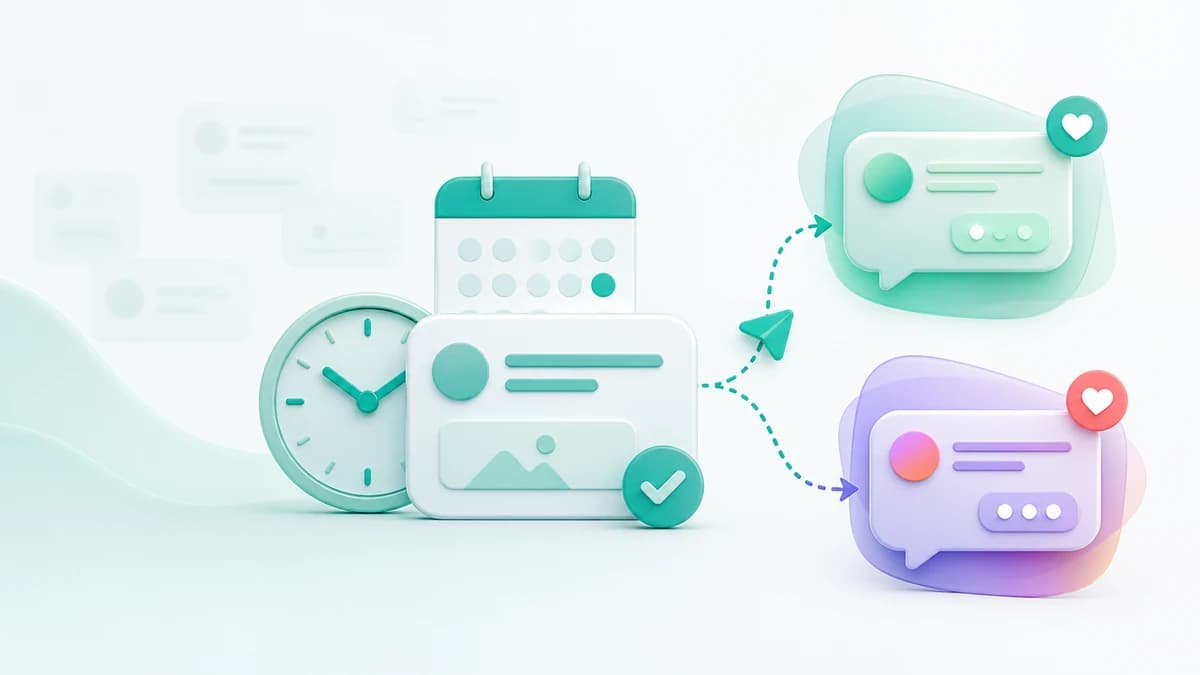
A planned message is useful only when it reaches the right person, through the intended account, at a time that still makes sense. Here is how to schedule carefully across WhatsApp and Instagram.
- Publication date
- Published
- Reading time
- 10 min read
- Author
- Linkrium Editorial Team
Checked against first-party documentation on for iOS, Android, Web, Desktop. Interfaces change and rollouts are staged, so confirm details in your own app version.
On this page11 sections
Quick answer#
There are two useful ways to plan these messages:
- Instagram's native scheduler is the simplest option when the conversation stays in Instagram and the scheduling control is available in your app.
- Linkrium's conversation scheduler lets you prepare a text reply from the same contact-based inbox and deliberately choose WhatsApp or Instagram as the delivery channel.
The second approach is helpful when the same person contacts you on both networks. It reduces app switching, but it does not merge the providers or bypass their rules. The message still leaves through the selected connected account, and the connection must be working when delivery is attempted.
| Need | Best starting point | Boundary to remember |
|---|---|---|
| Schedule one Instagram text DM | Instagram's built-in scheduled-send control | The control can vary by app version and rollout |
| Send a WhatsApp text later from a Linkrium conversation | Linkrium's clock control in the composer | The WhatsApp connection must remain valid |
| Choose between WhatsApp and Instagram for one contact | Linkrium's channel selector, then the clock control | Verify the selected identity and channel before scheduling |
| Send the same update to an opted-in group | Planned group sending, when enabled for the workspace | Treat reachability, consent, frequency, and failures as separate checks |
| Remember to contact someone without writing the message yet | A reminder or task | A reminder prompts you; it does not send automatically |
Schedule a WhatsApp or Instagram message in Linkrium#
Use the conversation composer for a one-to-one planned message. The flow is intentionally close to sending immediately, with one additional decision: the delivery time.
- Open Inbox and select the correct contact.
- Review the recent conversation so the planned reply still fits the context.
- In the channel selector, choose WhatsApp or Instagram. If the person has more than one address on that channel, select the intended number or account.
- Confirm the sending account when more than one connected account is available.
- Write the message as final text. Planned sends are currently text-only, so remove any staged attachment.
- Select the clock control beside the channel selector.
- Choose the future date and time shown in your local time zone, then select Schedule.
- Return to the conversation after the planned time when delivery is important and verify that the message appears with the correct source and status.
Do not schedule while the wrong channel is merely selected by default. A client who wrote on Instagram yesterday may have asked you to continue on WhatsApp today, but that preference should be explicit. Choosing a channel is a communication decision, not just an interface setting.
What happens after you schedule#
Linkrium queues the message in an outbox. Closing the browser does not turn the plan into a forgotten local timer. At the chosen time, the outbox tries the selected provider route and can retry a temporary provider failure.
That durability is not a delivery guarantee. A disconnected account, expired session, changed recipient identity, provider restriction, or lost permission can still prevent the send. When the content is time-sensitive—an appointment change, access instruction, payment deadline, or travel update—check the resulting thread rather than treating the clock as proof of receipt.
Scheduling also does not reserve the conversation's context. The recipient may send three new messages between planning and delivery. Read the scheduled copy as if it appeared after those new messages. If it could sound confusing, insensitive, or redundant, use a reminder and write the reply later instead.
Schedule a DM inside Instagram#
Meta's native Instagram flow is the fastest route for a text message that belongs only in Instagram:
- Open the Instagram conversation.
- Type the text message.
- Press and hold the send button instead of tapping it.
- Choose the date and time.
- Confirm the scheduled send.
Use the official app and keep it updated if the press-and-hold option does not appear. Features can roll out gradually, and web, mobile, professional, and personal account surfaces do not always expose identical controls.
Before leaving the chat, confirm that you scheduled the message instead of sending it immediately. This is especially important on a touch screen, where a short tap and a long press have different results. Also remember that Instagram's scheduling announcement describes text messages; do not assume every sticker, disappearing item, media type, or reply treatment supports the same workflow.
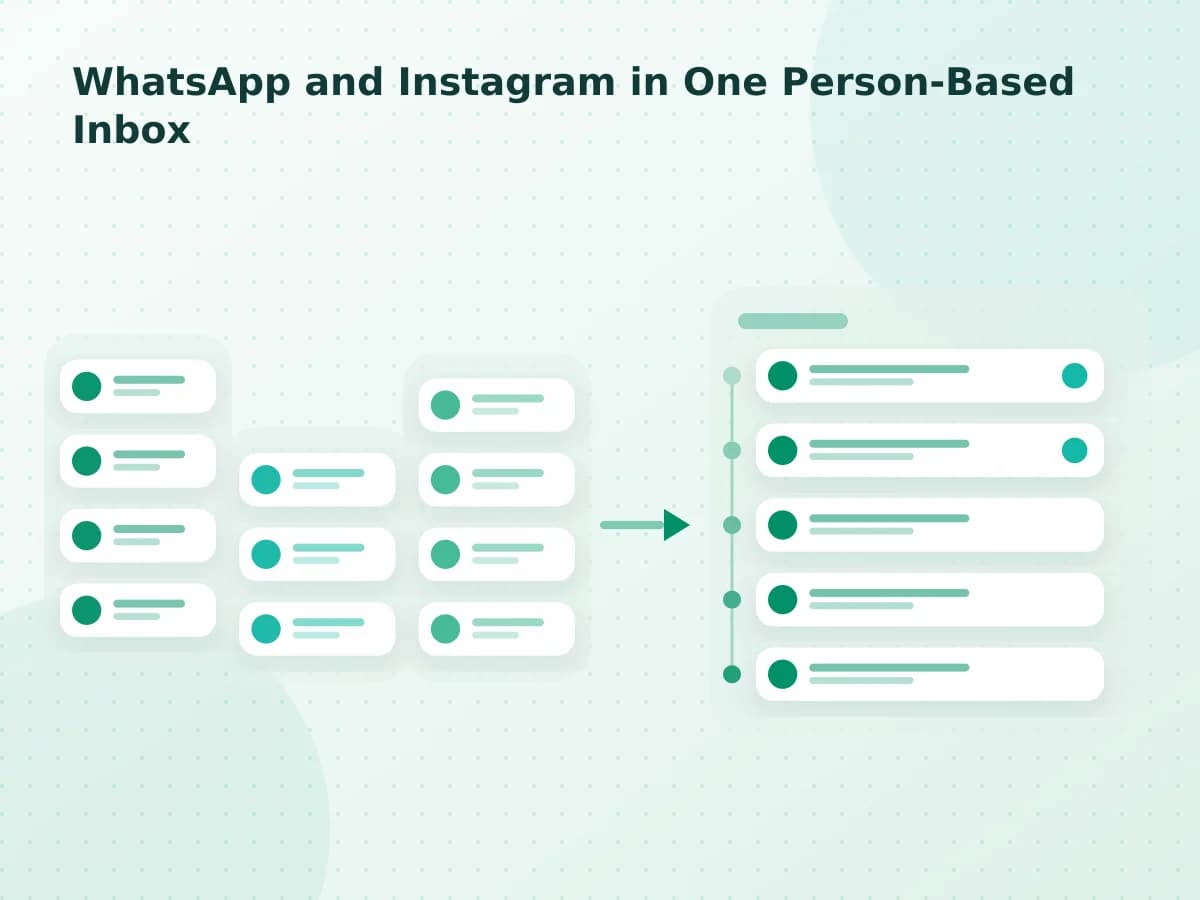
If the recipient also uses WhatsApp, native Instagram scheduling remains an Instagram action. It does not redirect the DM to WhatsApp or select the channel the person is most likely to read. Use the WhatsApp and Instagram inbox guide when you need to understand how the two histories can sit beside the same verified contact.
Treat WhatsApp scheduling as a queued provider send#
WhatsApp and Instagram should not be described as one delivery network. With a Linkrium planned message, WhatsApp remains the provider. Its connection status, account rules, and recipient relationship still determine whether sending is appropriate and possible.
For an ordinary follow-up, check four things before choosing a time:
- Identity: Is this the correct WhatsApp number for the person?
- Expectation: Are they expecting this category of message from you?
- Timing: Will the message be helpful in their likely local time?
- Context: Could new information make the prepared text wrong before it sends?
WhatsApp's messaging guidelines prohibit spam and harmful automation, and its business policy places additional requirements on business messaging, including consent and honoring opt-out requests. Scheduling a message does not create consent. Nor does a technically reachable address make repeated contact welcome.
Avoid using one-to-one scheduled sends as a workaround for bulk outreach. If your workspace has planned group sending enabled, keep groups small and purposeful, use only the channels each person agreed to, and review the estimated message count before confirming a recurring plan. A group with 20 people selected on two channels can create 40 outbound messages in one occurrence, not one harmless announcement.
Pick a time that survives time zones and daylight saving#
The scheduling dialog uses the time zone reported by your device or browser. That makes “tomorrow at 9:00” convenient for you, but it may not mean 9:00 for the recipient.
Use this simple check:
- Identify the recipient's likely local zone from information they supplied; do not infer a precise location from private data you do not need.
- Convert the intended recipient time into the time zone shown by your device.
- Check whether a daylight-saving change occurs before the send date.
- Include the zone in appointment text when ambiguity matters: “Tuesday at 14:00 UTC,” for example.
- Prefer normal waking hours unless the recipient asked for an overnight alert.
For travel days, launches, and events, schedule a small confirmation first rather than creating several messages weeks in advance. Plans change, and each additional queued message becomes another item that must be reviewed or cancelled.
Scheduled message or reminder?#
A scheduled message is best when the wording is already correct and the future event is highly predictable. A reminder is safer when the final response depends on information you do not have yet.
| Situation | Schedule the message | Create a reminder instead |
|---|---|---|
| Confirmed birthday greeting | Yes, if the time zone is known | If the relationship calls for a fresh personal note |
| Appointment reminder | Yes, after checking consent and the final time | If the appointment may move |
| “Did you receive the document?” | Yes, if the document has definitely been sent | If delivery or approval is still pending |
| Sales follow-up | Only when it is expected and specific | When you need to review the account before contacting them |
| Sensitive personal conversation | Rarely | Usually; context and tone can change quickly |
| Emergency or safety information | No | Use a live, appropriate urgent channel |
The conversation reminders and calendar guide explains the non-sending option. A reminder preserves your intention while keeping a person in the loop at the moment of action; a scheduled message preserves the copy but cannot reconsider it.
Review recurring and group plans carefully#
Some Linkrium workspaces expose a Broadcasts area for contact groups and planned sends. When available, it can queue a one-time message or a bounded daily, weekly, or monthly recurrence. Each selected person-channel pair becomes its own delivery target, and the status view separates sent, failed, skipped, and retrying recipients.
That detail matters. A partly sent run is not a success and not a total failure: some people may already have received the text while others have not. Re-running the whole announcement manually can duplicate messages for the successful recipients. Inspect target-level status first.
Before saving a group plan:
- remove anyone who did not request this type of update;
- check how many messages one occurrence will create;
- set a finite occurrence count;
- use a stable, explicit schedule and time zone;
- assign someone to review failures and opt-out requests;
- cancel the recurrence when its real-world purpose ends.
Recurring “just checking in” messages quickly become impersonal and unwanted. Prefer event-driven updates—confirmed class reminders, a requested weekly availability notice, or a defined project checkpoint—with a clear end.
Write planned messages that still sound human#
Good scheduled copy includes enough context to make sense later without pretending it was written at the moment of delivery.
Instead of:
Just following up.
Write:
Hi Maya — a quick reminder that our viewing is tomorrow at 10:30. Please reply here if the time no longer works.
The second version identifies the event, states the time, and gives the recipient a useful next action. It remains understandable even if it arrives after another conversation.
Keep the message proportionate. Do not split one planned note into a sequence of short bubbles simply to imitate live typing. Avoid false urgency, manufactured personalization, or language that implies you have just read a reply when the text was prepared earlier.
If the message contains a date, amount, address, meeting link, or deadline, copy it from the source of truth and verify it immediately before scheduling. For high-impact details, use a reminder so a person performs a final check at send time.
Troubleshoot a message that did not send#
Work from the provider route outward:
- Open the contact and confirm the selected WhatsApp number or Instagram identity still belongs to the intended person.
- Check Settings → Channels and confirm that the sending account is connected.
- Send a test message on each channel to confirm its current send limits.
- Check whether the planned time and device time zone were correct.
- Look for a sent, failed, skipped, cancelled, or retrying status where scheduled-message details are available.
- If some group targets succeeded, contact only the failed or skipped recipients after resolving the cause.
- Do not repeatedly press send while a retry is pending; that can produce duplicates when the provider recovers.
Never reconnect by giving an untrusted service your Instagram or WhatsApp password. Use only the documented connection flow, revoke access you no longer need, and review the security overview before connecting a sensitive account.
Final checklist#
Before selecting Schedule, confirm:
- the contact and specific identity are correct;
- WhatsApp or Instagram is deliberately selected;
- the sending account is the one you intend to use;
- the recipient expects this message;
- the text will still make sense if the conversation changes;
- the date, time, and time zone are correct;
- no unsupported attachment is staged;
- the message is not urgent or safety-critical;
- you know how you will verify delivery or handle a failure.
A scheduler solves “send this later.” It does not solve “decide later whether this should be sent.” Keep that second decision human.
Frequently asked questions
Can I schedule an Instagram DM in Instagram itself?
Yes. In a supported version of the Instagram mobile app, write a text DM, press and hold the send button, choose the date and time, and confirm the scheduled send. Availability and placement can vary by app version and account rollout.
Can I schedule a WhatsApp message for later?
Linkrium can queue a text message for a future time through a supported, connected WhatsApp conversation. The account still has to be authorized and reachable when the send runs, and scheduling does not override WhatsApp rules or recipient consent.
Do scheduled messages include photos, videos, or voice notes?
Linkrium's current planned-send flow is text-only. Send an attachment manually at the appropriate time or put the media in an approved provider workflow rather than assuming it will travel with the scheduled text.
Will a scheduled message send if my browser is closed?
Linkrium places the message in its outbox instead of relying on an open browser tab. The connected provider account must still be valid and available at delivery time, so review the conversation afterward when timing is important.
Can I cancel a planned message?
Cancel it before delivery wherever the scheduled-message controls are available in your workspace. Cancellation stops a queued future send; it cannot unsend a message that the provider has already accepted.
Official sources
The sources below support the platform behavior discussed in this article.